
White images and photo edits, from your chat.
Ask for a pure white PNG, or open a local editor for your product photo. Free tools, with no WhiteBackground account or API key.
https://whitebackground.app/mcp
Add the connection yourself, then select it in chat. See the setup steps ↓
“Create a 2048 × 2048 pure white PNG.”
Choose your assistant.
Connect the public MCP server, then start a new conversation. Your assistant can create a blank white PNG or bring you to the right photo editor.
Add a custom connection in ChatGPT Plugins.
- Open Plugins and choose Add → Add custom MCP server.
- Name it WhiteBackground, paste the server URL, and choose No authentication.
- Review the connection notice, create and connect the plugin, then select it in a new chat.
https://whitebackground.app/mcpCustom MCP access depends on your ChatGPT account and workspace policy. This creates your own connection.
Add the public server with the Codex CLI.
- Run the command below in your terminal.
- Start a new Codex session and check that WhiteBackground tools are available.
- Ask for a blank PNG, or follow the returned link to choose and edit a photo in your browser.
codex mcp add whitebackground --url https://whitebackground.app/mcphttps://whitebackground.app/mcpThe server needs no WhiteBackground API key. Photos are chosen in the browser editor.
Add the server in a Grok Bot client that supports remote HTTP MCP.
- Open the client’s MCP connection settings and add a server named WhiteBackground.
- Use the server URL below, choose HTTP transport and no authentication, then connect.
- Check for create_white_canvas and open_photo_editor, then try one of the requests below.
https://whitebackground.app/mcpGrok Bot returns the browser editor link. These steps apply to the MCP-capable Grok Bot client; availability on grok.com is separate.
Another MCP client? Add the same Streamable HTTP URL with no authentication. Client support and account requirements vary.
Start with a small, useful request.
Copy a request below. In your assistant, choose the WhiteBackground connection you added, then paste and send the request.
A white PNG, ready to download
Choose the canvas size. The tool returns a real PNG and its download link.
Use WhiteBackground to create a 2048 × 2048 pure white PNG and give me the real download link.Need a blank JPG? Open the canvas generator →
The whole handbag, in a square
Open the square editor, choose your photo locally and keep background removal unchecked.
Use WhiteBackground to open the square photo editor. I want to keep my whole handbag photo without cropping the handles.Open the square editor →
A transparent PNG on white
Keep an existing cutout, compose it on white and export a JPG without another removal pass.
Use WhiteBackground to open the transparent PNG to white background editor so I can choose my PNG locally and save a white JPG.Open the PNG editor →
Keep the handles. Add the space.
The square workflow keeps the whole original scene and adds white padding. This wide handbag photo became an 1807 × 1807 px square, without stretching the bag or cutting off its handles.
Try the Wide handbag sample →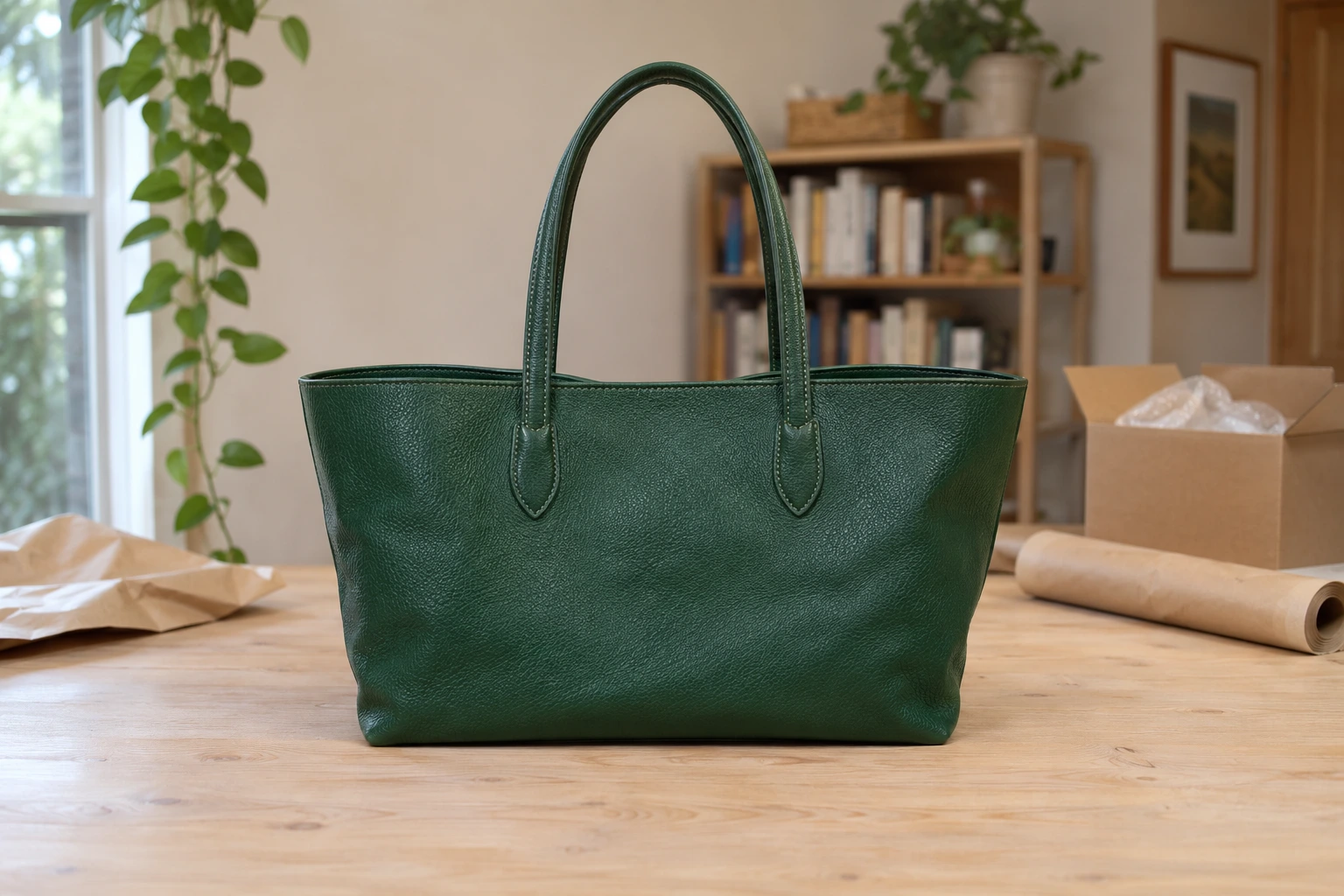
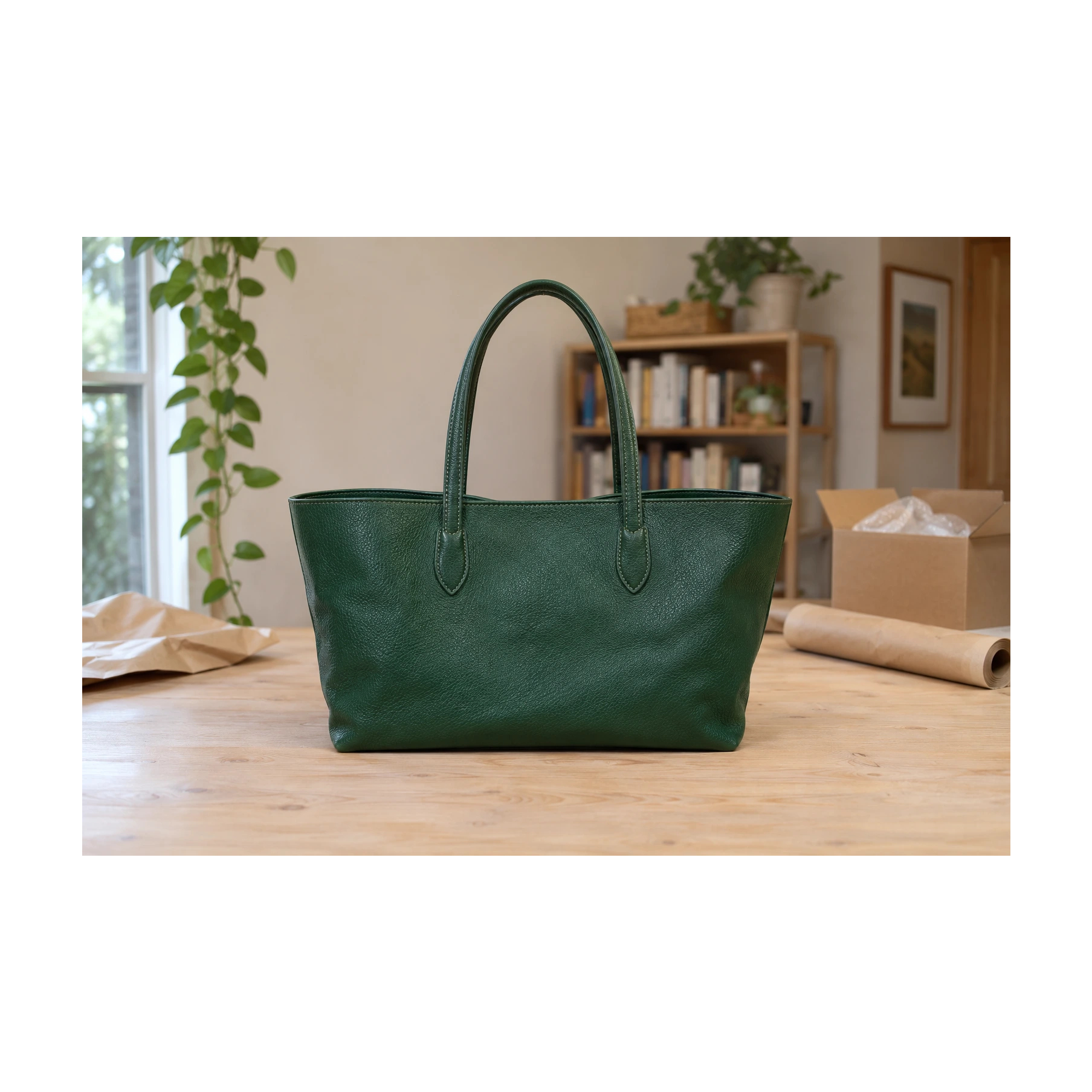
Example source created for this tool. The result was exported with our local browser editor. Inspect the actual JPG.
One connection. Six local workflows.
The assistant opens the matching editor. Choose your photo there, review the result and save it on your device. You can also open any editor directly below.
Make a photo background white
Choose a photo on your device in Quick mode. Inspect the edges and download a white JPG or PNG.
Open editor →Remove a background for a transparent PNG
Choose a photo on your device in Quick mode. Inspect the cutout and download PNG to preserve transparency.
Open editor →Place a transparent PNG on white
Choose your existing transparent PNG. Its cutout is composed directly onto white. Download JPG or PNG.
Open editor →Make a photo square without cropping
Leave background removal unchecked before choosing the photo to keep the entire scene. Adjust padding, inspect all handles and edges, then download.
Open editor →Resize Shopify product photos
Choose a photo from your device. Use the 2048 px preset or a custom canvas and check actual export dimensions before downloading.
Open editor →Enlarge a product photo locally
Choose 2x or 4x and a compatible input. Compare standard and AI results and protect labels or logos before downloading. AI may change fine details.
Open editor →Save your result at its full size.
In an embedded chat editor
- Choose your photo inside the editor and inspect Original and Result.
- Choose JPG or PNG, then select Download image.
- Right-click the full-resolution export, choose Save Image As, and save with your chosen filename.
The preview is scaled to fit the conversation; the saved image keeps its actual export dimensions. Desktop JPG and PNG saving have been tested in ChatGPT.
In a normal browser tab
Use the editor’s “Open WhiteBackground.app in a browser” link before choosing a photo, then edit and download there. This gives you the full browser workspace and its usual download controls.
Some assistants return this browser link without an embedded editor. Touch-and-hold menus vary by client and device; use the browser editor if your client cannot save the image.
Let Cloud process a selected chat attachment.
Use your existing WhiteBackground Cloud account and credits through a separate OAuth connection. The free public connection above keeps its local-only photo workflow.
- Add a separate connection named WhiteBackground Cloud. Use the URL below and choose OAuth authentication.
- Sign in to your existing WhiteBackground account and review the requested permissions. Connecting does not buy a plan or spend credits.
- Ask the assistant to prepare one Cloud background-removal request. Open its confirmation link, check the selected photo and approve uploading it and spending 1 Cloud credit.
- Keep that page open until the white JPG is saved. It also offers a white PNG and the original transparent cutout. Ask the assistant to check the existing request for its private download link.
https://whitebackground.app/mcp/cloudChatGPT file inputs use supported signed attachment references. If your client cannot pass one, choose the photo on the confirmation page. Attachment import and native result display vary by client; connecting is not proof that every client can transfer files.
Cloud accepts JPG, PNG and WebP up to 5 MB, 256–4096 px per side and up to 16 MP. Cloud-pack inputs/exports have a maximum edge of 2200 px; Pro supports up to 4096 px. Failed or timed-out jobs follow the existing credit refund policy. No automatic paid retries.
Your photo is uploaded to WhiteBackground and KIE for this paid workflow. Our private stored files have a 24-hour deletion policy; KIE retention is separate. Download links last up to one hour and are blocked when the connection is revoked. Previously downloaded files cannot be recalled.
Manage or revoke Cloud connections · Existing plans and credit packs
A few useful answers.
Do I need a WhiteBackground account or API key?
The free public connection needs neither. The separate paid Cloud connection requires signing in to your WhiteBackground account, granting scoped OAuth permission and having an existing purchased Cloud entitlement and credits. Connecting never buys a plan or spends credits.
Can I attach a photo to chat and have this MCP edit it?
The free connection opens a local editor and does not accept chat attachments. The optional Cloud connection can prepare a supported signed attachment reference; you then confirm upload and 1 existing Cloud credit in your browser. If the client cannot provide a supported reference, choose the photo on that same confirmation page. Preparing a request alone does not upload or process it.
How do I save a photo from the ChatGPT editor?
Choose JPG or PNG and export. The embedded editor shows the full-resolution image; right-click it and choose Save Image As, then choose a filename and save. The saved file keeps the export dimensions. If your client has no image-saving menu, open the browser editor before choosing a photo and download there. Automatic downloads from embedded pages depend on the host.
Does my photo leave my device?
Free Quick processing keeps the photo and EXIF on your device. The optional paid Cloud workflow uploads the selected photo to WhiteBackground and KIE only after your confirmation. Our stored Cloud files and derived exports have a 24-hour deletion policy; KIE retention is separate. Cloud result links last up to one hour and require the connection to remain authorized.
What sizes can I export for free?
Blank PNG canvases support whole-number dimensions from 1 to 8192 px per side, up to 32 million pixels total. Free background-editor photo exports have a maximum edge of 2200 px and do not enlarge a small subject. The separate local enhancer supports 2× up to 2200 px or 4× up to 4096 px for compatible inputs; inspect fine details before using its output.
Do I need both the skill and the MCP connection?
The skill is optional. It explains which workflow to choose and how local photo handling works. The MCP provides the callable tools. Installing the skill does not install or connect the MCP server.
Why am I seeing an older editor interface?
Clients can cache tool metadata and editor resources. Refresh the connection if your client offers that option, then start a new chat. If there is no refresh control, add a new connection to the same URL and verify it before removing the earlier connection.
Why should I keep the Cloud confirmation page open?
KIE returns the transparent cutout. The confirmation page composes a pure white square using the existing browser framing rules, then saves the actual white JPG privately for your assistant to retrieve. Keep it open until sharing finishes. Subject fill starts at 85% and can be adjusted from 70% to 95% without another paid model call; PNG is available to download there. The assistant must not claim a white file is ready until it has actually been saved.
Will retrying or changing white padding spend another Cloud credit?
Confirming the same request reuses its existing Cloud task. Failed or timed-out tasks use the existing credit refund handling and are not automatically resubmitted. White padding and JPG/PNG composition reuse the completed cutout without another provider call. A deliberately new Cloud request requires its own confirmation and credit.
Add the optional WhiteBackground skill.
The skill explains tool choice, local photo handling and export limits. Extract its folder into your client’s skill directory, or use the client’s skill-upload settings. Connect the MCP server separately.
A clean canvas is a good place to start.
Connect WhiteBackground and try your first white PNG. Your photo editor is there when you need it.
https://whitebackground.app/mcp